Your ChatGPT and Codex accounts are incredibly value and require the highest level of security. For many people, it has become a working memory for personal research, business strategy, coding projects, private documents, creative ideas, and day-to-day decision-making. If that account gets compromised, an attacker may gain access to far more than a simple chatbot history. In this tutorial, we’re going to walk through the most important step you can take: enrolling in OpenAI Advanced Account Security.
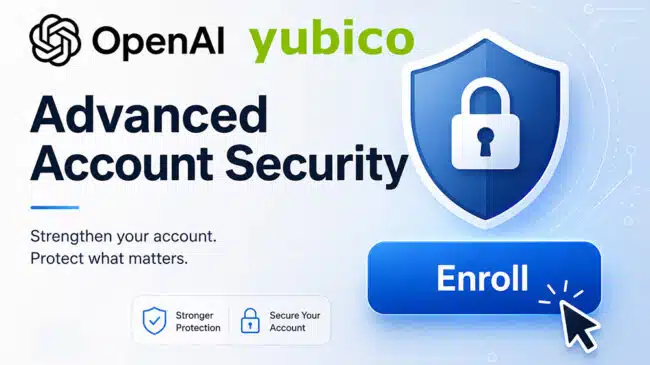
Advanced Account Security is designed to protect your ChatGPT and Codex account using stronger, phishing-resistant sign-in methods such as passkeys and Yubico physical security keys. Once enabled, weaker login and recovery methods like regular passwords, SMS codes, and email recovery are disabled.
In this guide, we’re going to cover:
- How to Enroll in Advanced Account Security
- What is ChatGPT Advanced Account Security?
- Benefits of OpenAI Advanced Account Security
- Best Practices for Advanced Account Security
- Is it even Worth it?
Let’s dive in.
How to Enroll in Advanced Account Security (Tutorial)
To begin, you’re going to need to have an existing OpenAI account that has been active for at least 7 days, which includes either ChatGPT or Codex.
- Begin Advanced Account Security Enrollment
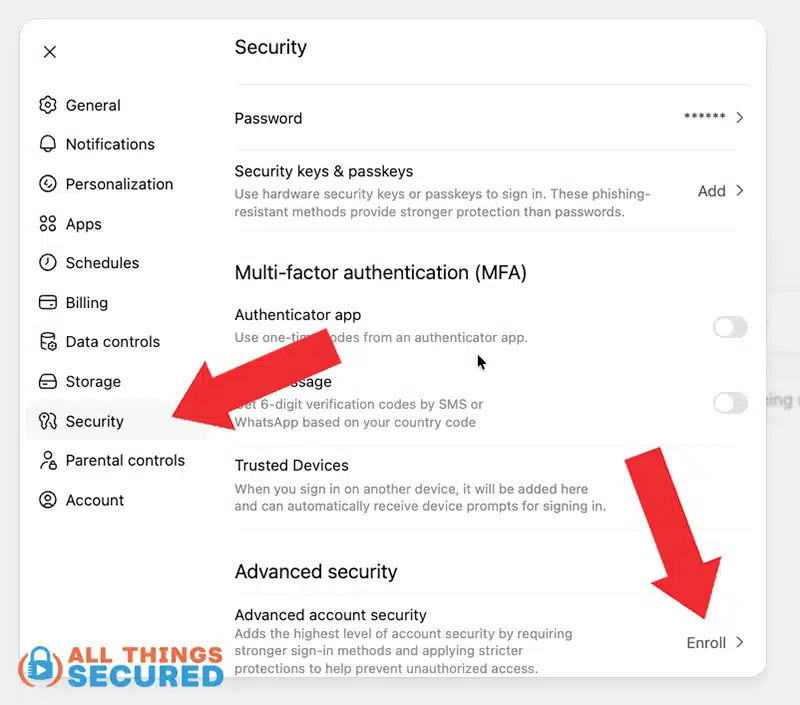
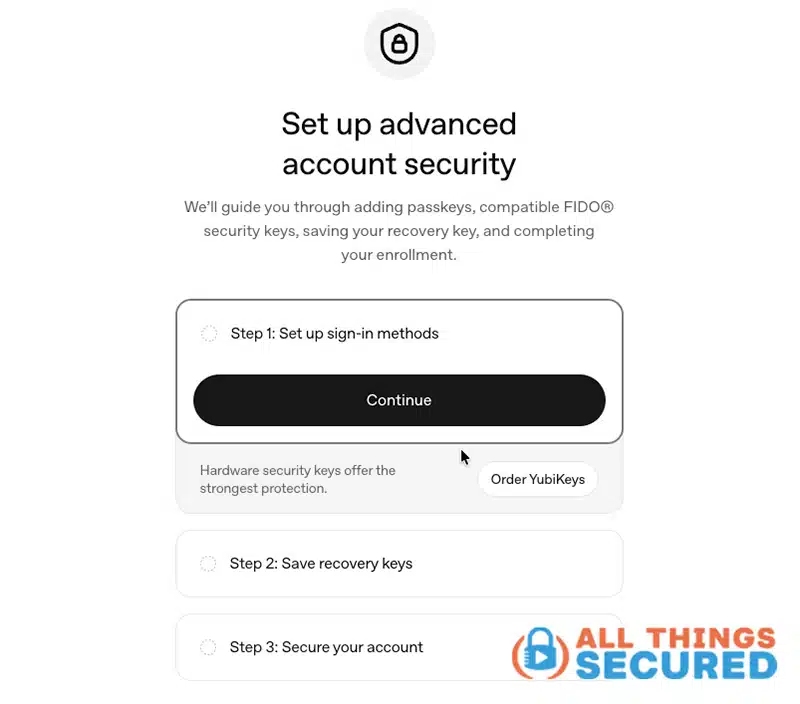
To start the enrollment process for Advanced Account Security, you can begin directly on the landing page or you can go into your account, click on your account on the lower left, find Settings and then navigate to Security.

- Initiate Set up of Sign-in Methods
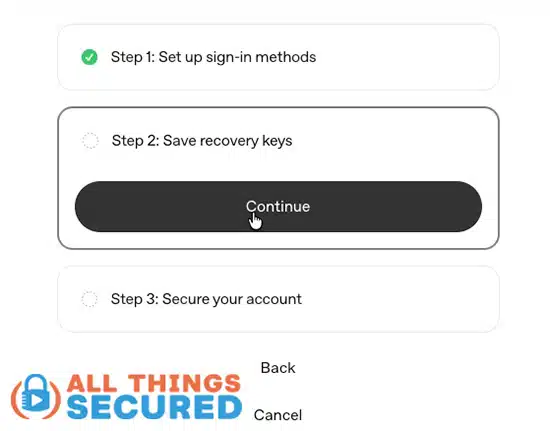
As you begin the enrollment process, you’ll be brought through a simple 3-step process that begins with setting up secure sign-in methods.

- Add 2 Passkeys or Security Keys (Yubico)
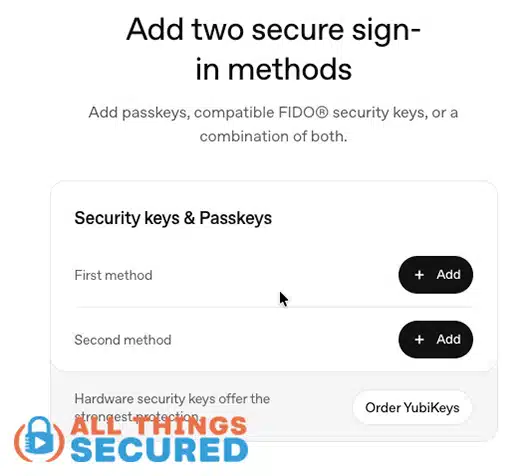
You will be asked to set up two secure sign-in methods. Although passkeys are available, the highest form of security is a physical security key.

- Order a Yubico Yubikey Package
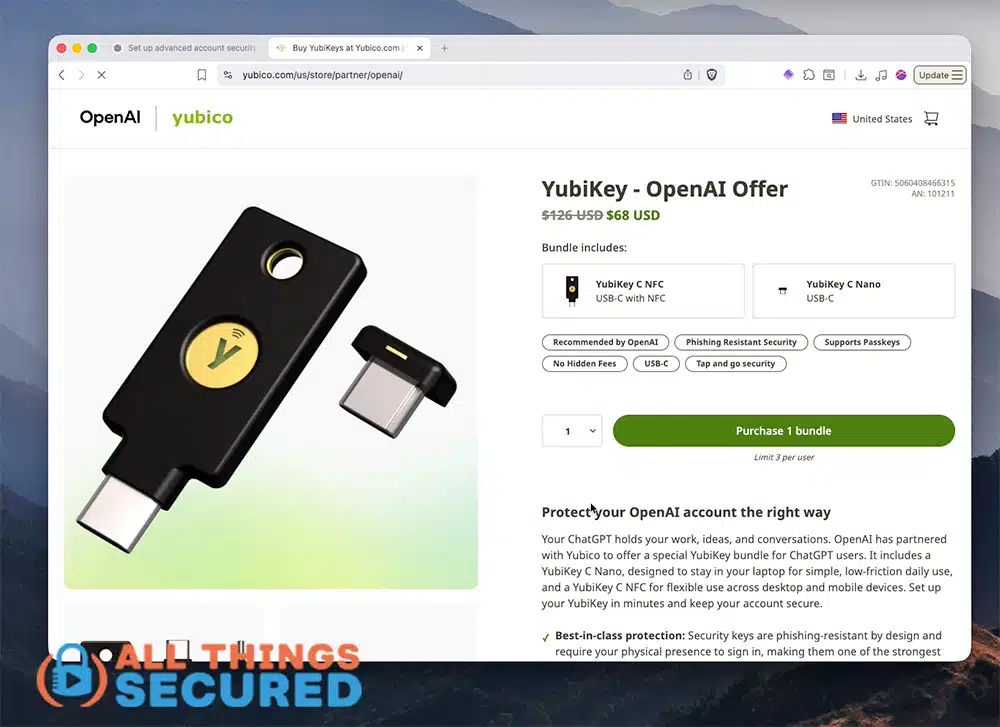
As part of the setup process, you have the option to order a special set of two YubiKeys that include a YubiKey 5C NFC and a 5C Nano. If you already own Yubico security keys, you don’t have to purchase new ones, but if you’ve never used physical security keys, this is a great place to start.

- Complete Physical Key or Passkey Setup
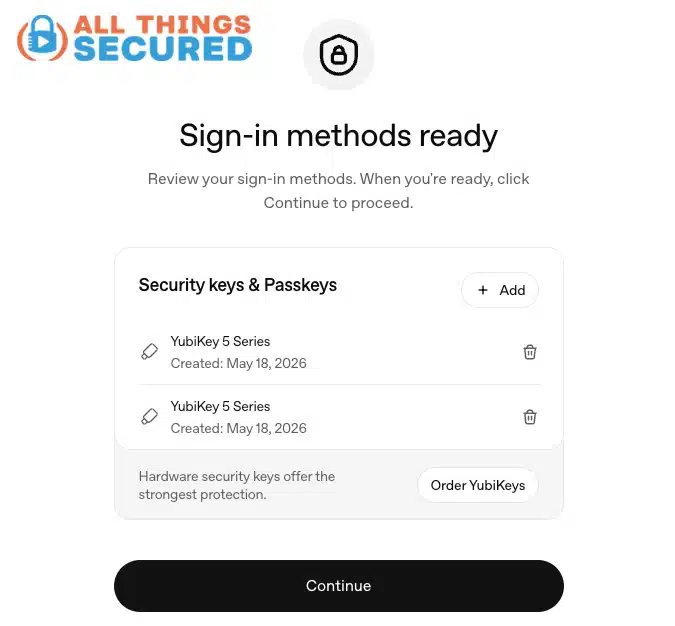
Even if you don’t have immediate access to physical security keys, you can still complete this process with software passkeys. Once you’ve set up two sign-in methods, click Continue.

- Step 2: Save Recovery Keys
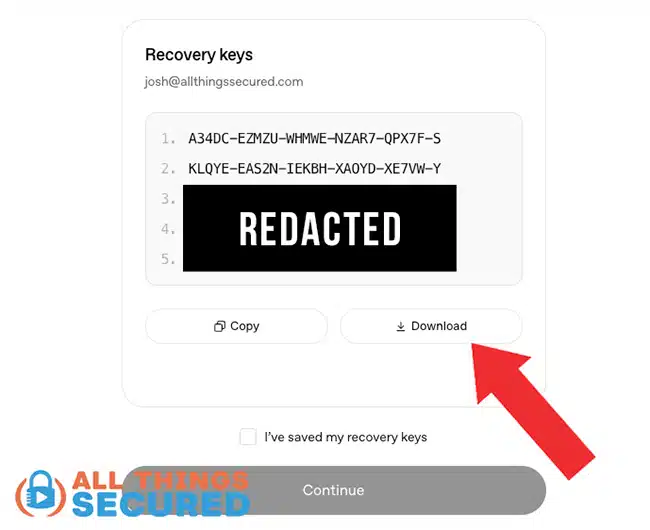
Although the two security keys are meant to act as a backup for each other, OpenAI also provides recovery keys in the event that you somehow lose the aforementioned keys.

- Download and Store your Recovery Keys
The recovery key, which is collection of 130 random letters of the alphabet, must be downloaded in order to continue. You can keep this file safe in an encrypted vault, on an offline drive or you could even print it out and keep it in a physical safe.

- Step 3: Finalize Enrollment in Advanced Account Security
OpenAI will remind you again all of the changes that are being made when you enroll in Advanced Account Security. Don’t worry: these are all very good security changes. Click “Enroll” to continue.

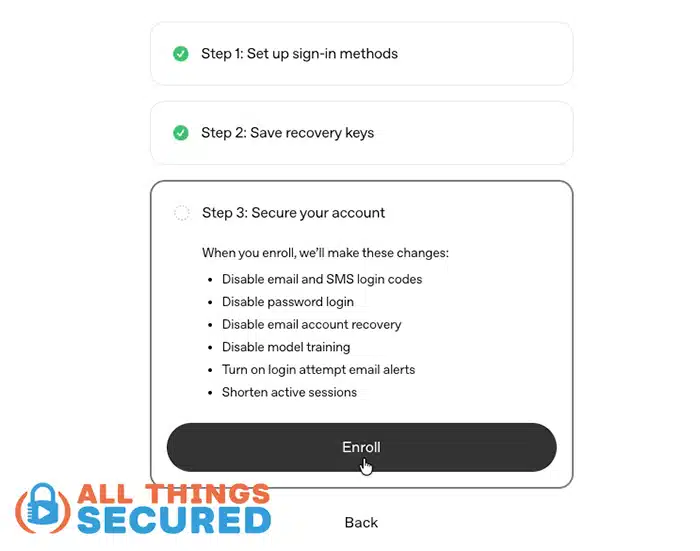
That’s it! You’re now enrolled in OpenAI’s Advanced Account Security, which is the strongest form of security for these accounts.
Now, when you open your ChatGPT or Codex security settings, you’ll see that you no longer have a password and the option to turn on authenticator or SMS 2FA (which are weaker forms of security) is disabled. It’s also important to note that you’ve been logged out of all other active sessions, which means you’ll need to log in again on other devices using a security key.
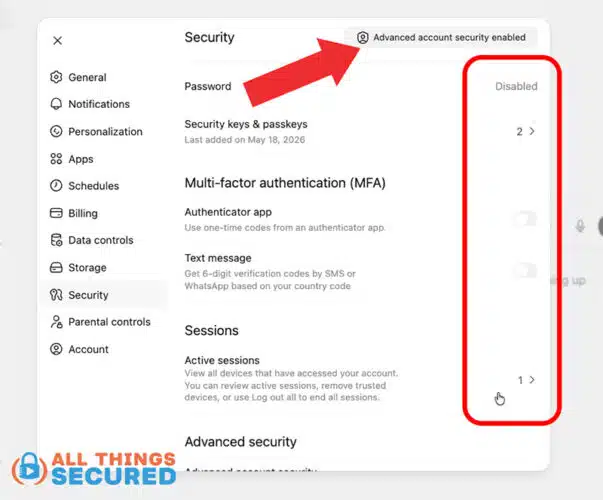
If you’re going to go through the process of enrolling in OpenAI’s Advanced Account Security, it’s highly recommended that you use a physical security key instead of a digital passkey when possible, as this is the stronger form of security.
What Is ChatGPT Advanced Account Security?
Ok, so that’s how to set it up, but you might be wondering what, exactly, you just enrolled in.
ChatGPT Advanced Account Security is an optional OpenAI security program that strengthens how you sign in to your account.
Instead of relying on a password, SMS code, email recovery, or authenticator app, Advanced Account Security requires stronger authentication methods such as:
- A passkey
- A hardware security key
- A backup recovery code just in case either of the above options is lost.
The biggest advantage is not just that you are adding stronger security. It is that you are also removing weaker fallback methods.
That matters because your account security is only as strong as your weakest recovery option. If an attacker cannot steal your passkey but can still get in through email recovery or SMS, your account is still vulnerable.
Why does this matter? What are you protecting, anyway?
Depending on how you use ChatGPT, your account could include:
- Past conversations
- Uploaded documents
- Business ideas
- Private research
- Code snippets
- Strategic plans
- Personal context
- Connected tools or integrations
- Codex workflows
- Files and project history
Even if you are careful about what you upload, your account may still reveal patterns about your work, your business, your personal life, or your decision-making. Advanced Account Security does not replace good privacy habits, but it does make account takeover much harder.
Benefits of Using OpenAI Advanced Account Security
When you enroll in ChatGPT Advanced Account Security, several important things happen.
- Password-based Login is Disabled: After enrollment, you no longer sign in with a standard password. Instead, you use phishing-resistant authentication methods such as a passkey or hardware security key. This reduces the risk of credential theft through fake login pages, phishing emails, or password leaks.
- SMS & Email Recovery are Disabled: SMS and email recovery are convenient, but they can also be weaker links. Attackers may try to compromise your email account, intercept SMS messages, abuse account recovery flows, or socially engineer their way into your accounts. Advanced Account Security removes these weaker recovery methods.
- Authenticator App 2FA is Disabled: Authenticator apps are usually better than SMS codes, but they are still vulnerable to some phishing attacks. A physical security key or passkey is much harder to phish because it is tied to the legitimate website domain.
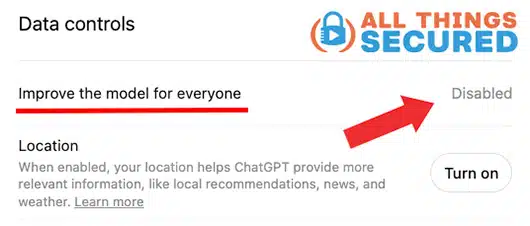
- AI Model Training is Automatically Disabled: Advanced Account Security also disables model training for your conversations. This is a privacy-focused setting I would recommend turning off anyway, but Advanced Account Security makes it automatic as part of the enrollment process.
- Active Sessions are Shortened: Advanced Account Security also shortens active sessions. This helps reduce risk if a device or active session is compromised. You will also be signed out of active sessions during enrollment, which means you will need to sign back in on your computer, phone, tablet, and other devices.
- New Login Alerts: After enrollment, you should receive an email notification when there is a new login to your account. This gives you a better chance of spotting suspicious activity quickly.
- Review Active Devices: OpenAI also provides an area where you can review devices actively signed in to your account. If you see a device you do not recognize, you can remove it.
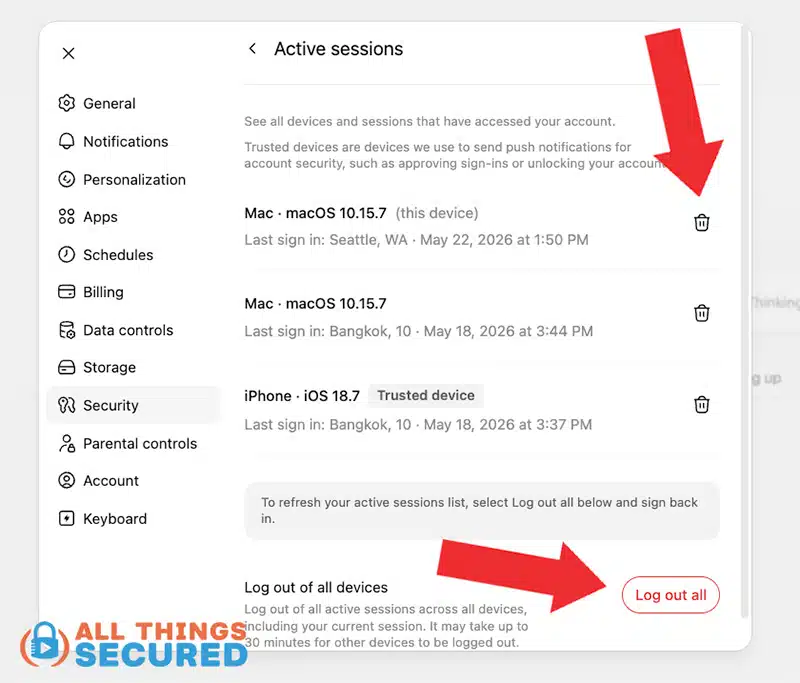
All of these benefits combine to create a stronger account security than if you were to just add simple 2FA for account security.
Should You Use ChatGPT Advanced Account Security?
Yes, if you use ChatGPT or Codex in any serious way, Advanced Account Security is worth enabling.
It is especially important if you use ChatGPT for:
- Business research
- Coding
- Client work
- Sensitive brainstorming
- Personal productivity
- Document analysis
- Financial planning
- Private writing
- Strategic decision-making
Even casual users can benefit from stronger account protection, but the more value your ChatGPT account contains, the more important this becomes.
Best Practices for ChatGPT Advanced Account Security
To get the most benefit from Advanced Account Security, follow these best practices.
1. Use Two Hardware Security Keys
One key should be for daily use, and the second should be your backup. I recommend keeping one key with you and the other key safely stored in a different location (e.g. your home, office, safe, etc.).
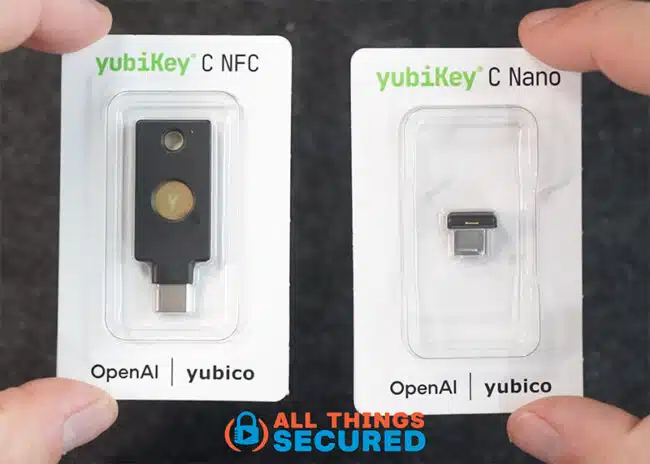
This gives you strong security without creating a single point of failure. There are many manufacturers out there, but Yubico is far and away the most trustworthy.
2. Set a PIN on Your Security Key
What if your security key is lost or stolen? This is why it’s important to set a PIN for your YubiKey, which can be anywhere from 4 to 63 characters long. You will be asked to input this PIN before verifying the security key.
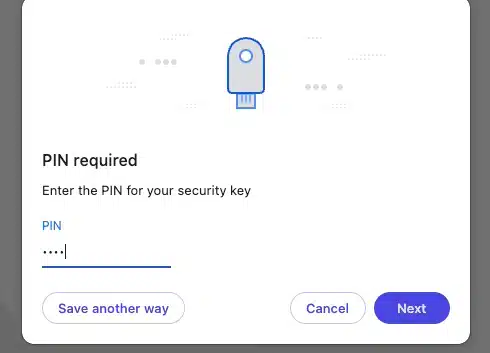
Set this up through Yubico’s desktop manager app before relying on the key for important accounts.
3. Store Recovery Codes Securely
Your recovery codes are powerful. Treat them like the keys to your account because, basically…they are. Anybody who has this strong of 130 characters can get access to your account.
Store them somewhere encrypted, offline, or physically secure.
4. Protect Your Email Account Too
In addition to your ChatGPT account, your email account is still one of the most important accounts you own.
Even if ChatGPT recovery through email is disabled, your email is still connected to alerts, billing, and other services. Use strong authentication on your email account as well. Learn how to add a security key to Gmail here.
5. Review Active Sessions Regularly
Check your signed-in devices from time to time. It doesn’t take very long and it could potentially save you from a lot of headache. Just go into Settings, Security and click on Active Sessions. If you see anything suspicious, remove it.
6. Avoid Uploading Sensitive Documents Unredacted
Advanced Account Security protects your account from unauthorized access, but it does not mean you should upload everything without thinking. Before uploading documents, consider redacting:
- Account numbers
- Social Security numbers
- Tax IDs
- Medical information
- Addresses
- Signatures
- Client names
- Financial details
- Private legal details
Is ChatGPT Advanced Account Security Worth It?
Is Advanced Account Security worth it? Absolutely, yes.
If you use ChatGPT or Codex for anything meaningful, Advanced Account Security is one of the best protections you can enable.
Passwords, SMS codes, and authenticator apps are better than nothing, but they are not the strongest option available. A phishing-resistant login method such as a passkey or hardware security key gives you a much higher level of protection.
The best part is that once you set it up, you rarely have to think about it. You keep your primary key with you, store your backup key safely, protect your recovery codes, and sign in with stronger security from that point forward.
Final Thoughts on ChatGPT Advanced Account Security
Your ChatGPT account may now contain some of your most valuable personal and professional context. That makes it worth protecting.
This also presents an excellent opportunity to begin using physical security keys from Yubico to secure many of your online accounts, not just your OpenAI account. This includes things like:
At the end of the day, if you use ChatGPT or Codex regularly, Advanced Account Security is an upgrade worth enabling as soon as it is available to you.