Every time you visit a website, your device asks a simple question: “Where is this on the internet?” That question travels through what is known as the domain name system, or “DNS” for short, and whoever answers it knows exactly where you’re trying to go. In 2026, understanding this process—choosing how your browser, device, or home network handles it—is one of the most practical things you can do for your online privacy and security.
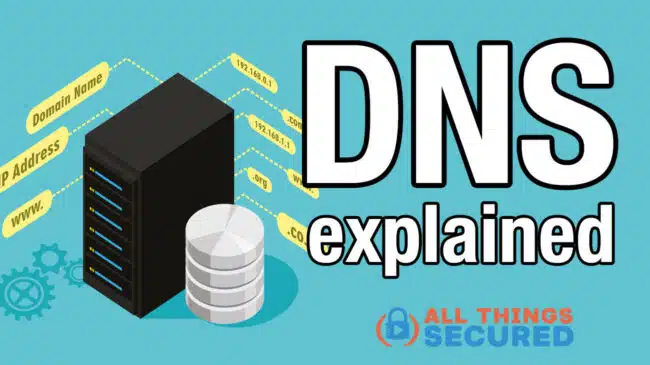
DNS tools are the services and setup methods that control and secure those DNS requests—often by encrypting them with DNS over HTTPS or TLS and by blocking malware, ads, and trackers before a site loads.
This guide explains how DNS works, why it matters for privacy, what the main DNS providers and filtering services actually do, and how to set up and test DNS tools at the browser, system, and network level. The goal is simple: give you enough control to reduce tracking, cut exposure to malicious domains, and make better decisions about which DNS tools fit your needs.
DNS & IP Address Privacy: Why It Matters in 2026
You can think of DNS as who your device asks for directions on the internet.
The domain name system (DNS) is more than a phone book translating human readable domain names into IP addresses: DNS work in a hierarchical, distributed way, and caching improves performance when user types an address and starts resolving domain names across the global Internet. It’s an active, real-time query that happens constantly—and it reveals your browsing intent to anyone listening before a web page loads.
Here’s what triggers a DNS lookup:
- Every website you visit;
- Every app that checks for updates;
- Every tracker pinging analytics servers;
- Every ad network loading content;
- Every background service phoning home;
Each of these DNS queries passes through DNS servers, typically controlled by your ISP. They can log these requests, build profiles of your behavior, sell that data to advertisers, or be compelled to hand it over to authorities. Studies from the Electronic Frontier Foundation indicate that 90% of internet traffic begins with a DNS lookup that can be intercepted or manipulated.
But here’s the good news: DNS can work for you instead of against you.

A DNS resolver focused on security and privacy can:
- Block malware domains before your browser ever connects;
- Stop ad and tracking domains from loading, cutting page bloat and protecting your privacy;
- Enforce parental controls, blocking gambling or adult content at the resolution layer. This is called protective DNS—using security-focused resolvers like Quad9, Cloudflare, NextDNS, or Control D to automatically return “not found” for known bad domains.
Encrypted DNS adds another layer. DNS over HTTPS (DoH) and DNS over TLS (DoT) wrap your DNS traffic in encryption, hiding it from your ISP or the coffee shop Wi-Fi operator. Firefox, Chrome, Android, and iOS all support these protocols now, with global adoption hitting 40% according to APNIC’s 2025 report.
The privacy trade-off is real, though. Whoever runs your DNS resolver can still see your requests unless they maintain strict no-logs policies. Cloudflare purges logs after 24 hours. NextDNS offers configurable retention down to one hour or complete anonymization. Jurisdiction matters too—Quad9 operates from Switzerland, while Cloudflare is US-based.
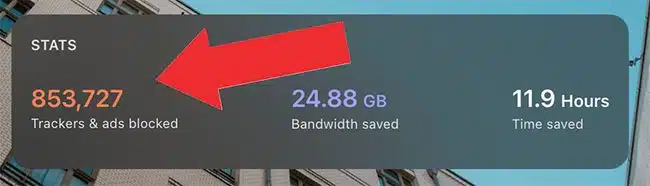
Consider a practical example: you visit a news site. Without protective DNS, your browser loads the article plus 40 tracker domains and ad networks. With NextDNS configured, those requests get blocked at the DNS resolution stage—the corresponding ip address is never returned, so the connection never happens. Independent benchmarks show this can reduce page load times by 15-30%.
A Private DNS Setup That Works (3 Levels of Protection)
You can harden your DNS in layers, starting simple and adding protection as you get comfortable. This section walks through three levels:
Each level works independently or stacks with the others. We’ll use concrete providers like Cloudflare, NextDNS, Control D, ProtonVPN NetShield, Little Snitch, and LuLu. Pick what fits your situation.
Level 1: Change Your DNS in the Browser (Fast, Low-Risk Start)
Changing DNS inside a single browser is the safest way to experiment. It won’t affect other apps on your device, and you can revert in seconds if something breaks.
Modern web browsers include built-in secure DNS settings:
Firefox (v125+):
- Open Settings > Privacy & Security
- Scroll to DNS over HTTPS
- Select “Max Protection” and choose Cloudflare, NextDNS, or enter a custom endpoint like https://dns.quad9.net/dns-query
Chrome/Edge/Brave (v124+):
- Open Settings > Privacy and Security > Security
- Find “Use secure DNS”
- Select “With” and choose Custom
- Enter your provider’s DoH URL (e.g., https://dns.nextdns.io/[yourID])
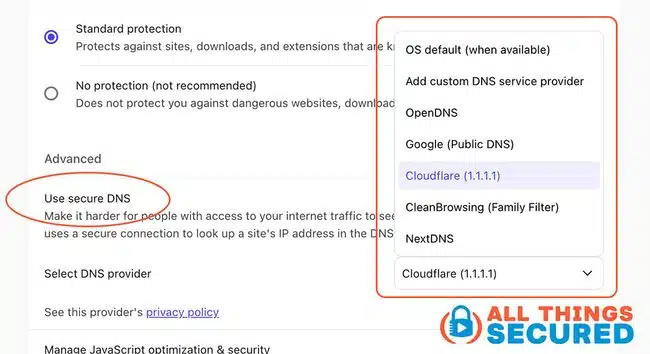
Once enabled, your ISP and public Wi-Fi operators see IP connections but not domain lookups from that browser. The DNS client in your browser handles resolution independently from your operating system.
This level is ideal for:
- Students on university Wi-Fi where admins block system DNS changes
- Travelers on hotel or airport networks
- Anyone testing NextDNS or Control D before committing system-wide
The limitation: only that browser benefits. Your email client, other DNS servers your apps contact, and system services still use default DNS.
Level 2: Use DNS Programs to Block Malware, Ads, and Trackers
DNS filtering platforms act like smart bouncers. They see every domain your device connected to and block what’s on their blocklists—malware, phishing, ads, trackers, adult content, whatever you configure.
Primary options:
- NextDNS: Cloud DNS with profiles, device names, logs, and fine-grained category blocking
- Control D: Customizable presets (Privacy Pro, Family, Unfiltered) with geo-routing options
- VPNs with DNS filtering: ProtonVPN’s NetShield combines encrypted tunnel with DNS blocking
NextDNS setup workflow:
- Create a free account at nextdns.io
- Configure a profile by toggling categories:
- Security (malware, phishing, cryptomining)
- Privacy (trackers, affiliate links)
- Parental (adult content, gambling)
- Copy your assigned resolver addresses (IPv4, IPv6, and DoH URL)
- Apply to your operating system:
- Windows 11: Settings > Network & Internet > Your connection > Edit DNS > Manual
- macOS Sonoma: System Settings > Network > Details > DNS
- Android 14: Settings > Network > Private DNS > Enter hostname
- iOS 17: Install the NextDNS app or use a configuration profile
Using raw IP resolvers (like 45.90.28.0) is easier and works everywhere, but queries travel unencrypted. DoH endpoints (like https://dns.nextdns.io/[ID]) encrypt your DNS data but may be blocked by restrictive networks.
Control D
Control D follows a similar pattern: pick a preset or build custom policies, get your resolver IPs and DoH URLs, apply to your router or OS. Control D excels at geo-routing—useful for accessing region-locked streaming services.
ProtonVPN NetShield (+ other VPNs)
ProtonVPN NetShield works differently. It blocks malware, ads, and trackers at the DNS level inside the VPN tunnel itself. When connected to ProtonVPN with NetShield enabled, your local DNS settings are overridden. This is useful on untrusted public networks or when ISP-level blocking is a concern.
For logging, NextDNS lets you choose 24-hour retention, 1-hour anonymization, or complete no-logs mode. Read your provider’s privacy policy—it determines who can see your DNS responses.
Level 3: Monitor All Connections with Little Snitch or LuLu
DNS filtering can’t catch everything. Some apps use hard-coded IP addresses. Some traffic bypasses DNS entirely. Firewall tools like Little Snitch and LuLu monitor all outbound connections, giving you visibility beyond what any authoritative DNS server or recursive resolver can provide.
Little Snitch (macOS, €45 one-time) shows every outgoing connection—domain, process, timestamp. You create rules: allow forever, deny once, ask again. It catches apps phoning home to analytics servers that might slip past DNS filters.
Real scenario: you install a new app. Little Snitch alerts that it’s trying to contact analytics.vendor.com. You block it. Done.
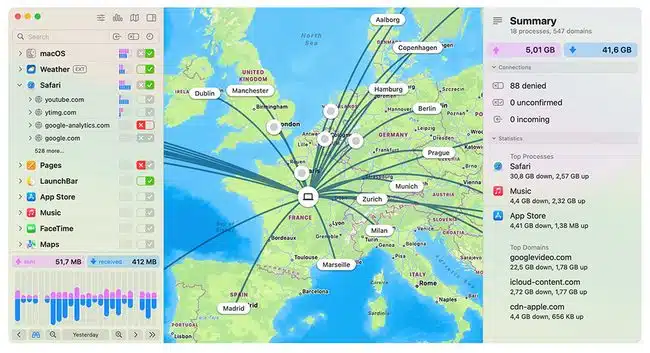
LuLu (macOS, free, open-source from Objective-See) provides similar functionality without the price tag. It prompts when apps try to talk to the network, letting you allow or block per-app.
Basic setup on macOS Sonoma:
- Download and install LuLu or Little Snitch
- Grant required system extension permissions
- Enable “alert mode” for new connections
- Review prompts as apps attempt outbound connections
These tools show destination domains (resolved via DNS) and ip address information, tying traffic back to specific processes. They complement DNS filtering by catching traffic that bypasses your chosen recursive DNS servers.
The recommended stack:
- Browser DoH for encrypted lookups
- NextDNS or Control D for system-wide filtering
- Little Snitch or LuLu for per-app monitoring
A 2025 Objective-See case study found this combination caught 15% more trackers than DNS alone.
Core DNS Concepts (Just Enough to Choose the Right Tools)
You don’t need to be a network engineer, but some vocabulary helps when configuring DNS tools.
Resolver vs. Authoritative server:
- A DNS resolver (also called recursive resolver or DNS recursor) is what your device points to. It handles the full DNS lookup process on your behalf.
- An authoritative DNS server (or authoritative nameserver) is where domain owners publish DNS records. It’s the final answer in the chain, answering queries definitively.
How recursive DNS works: When you type a domain name in your browser’s address bar, your resolver performs a recursive query. It contacts the root server, then the tld server (for .com, .org, etc.), then the domain’s nameserver, finally returning the specific ip address to your DNS client.
DNS caching and TTL: Your operating system, router, and resolver all cache DNS information. This speeds up repeat visits but means changes take time—sometimes minutes—to propagate. The TTL (time-to-live) value in record data determines how long caching lasts. If you switch DNS tools and things seem unchanged, wait for caches to expire or flush them manually.
Encrypted DNS types:
- DoH (DNS over HTTPS): Wraps DNS queries in HTTPS, commonly used by web browsers
- DoT (DNS over TLS): Uses TLS on port 853, common at OS or router level
Terms you’ll see in product interfaces:
- DNS filtering/protective DNS: Blocking malicious or unwanted domains via NXDOMAIN responses
- DNSSEC validation: Cryptographic verification preventing forged DNS answers
- Blocklists and allowlists: How services decide what to block using other DNS servers’ threat intelligence
How to Choose and Test a DNS Tool in 2026
No single DNS tool fits everyone. The best choice depends on your threat model—basic privacy, parental control, anti-malware, or anti-tracking.
Key criteria to compare:
| Factor | What to Look For |
|---|---|
| Privacy | No-logs policy, short retention, favorable jurisdiction |
| Security | Malware blocklists, phishing protection, DNSSEC support |
| Performance | Nearby resolvers, low latency (<20ms ideal) |
| Features | Per-device rules, analytics, parental controls |
| Cost | Free tiers vs. paid plans with higher query limits |
Simple DIY tests:
- Visit a known test ad/tracker domain to verify blocking works (any major news website should do the trick)
- Use nslookup or PowerShell’s Resolve-DnsName -Server 9.9.9.9 to confirm which resolver answers your iterative query
- Check Cloudflare’s browser diagnostics at 1.1.1.1/help to verify DoH status
Evaluate over at least a week. Monitor whether legitimate sites break. Adjust blocklists if essential services (like cdnjs.cloudflare.com for JavaScript libraries) get caught in overly aggressive filters. Some breakage affects 2-5% of sites initially, but allowlists fix most issues.
DNS Tools You Need to Know About
This curated list covers DNS tools frequently used in 2026 for privacy, security, and connection monitoring. Each works without enterprise infrastructure—these are tools for the average end user.
Quad9
Quad9 (9.9.9.9) is a free, non-profit protective DNS resolver focused on blocking malware and phishing. It pulls threat intelligence from IBM X-Force, CrowdStrike, and other sources—covering over 100 million malicious domains.
Setup for home use:
- Set your router DNS to 9.9.9.9 and 149.112.112.112
- All devices on your LAN get automatic malware blocking
- DoH endpoint: https://dns.quad9.net/dns-query
Quad9 is Swiss-based, privacy-centered, and requires no accounts or dashboards. Ideal for families wanting set-and-forget protection.
Cloudflare DNS (1.1.1.1)
Cloudflare DNS is one of the fastest public DNS resolvers, with global presence delivering sub-10ms latency in many regions.
Variants:
- 1.1.1.1 / 1.0.0.1: Standard, minimal logging
- 1.1.1.2 / 1.0.0.2: Malware blocking
- 1.1.1.3 / 1.0.0.3: Malware + adult content blocking
Cloudflare’s 1.1.1.1 apps for iOS, Android, Windows, and macOS enable DoH with one tap. Test your setup at 1.1.1.1/help to confirm encrypted DNS is active.
NextDNS
NextDNS is a highly configurable cloud DNS firewall with per-device profiles, extensive blocklists (300+ available), analytics, and optional logs.
Primary use cases:
- Blocking ads and trackers across all apps
- Enforcing parental controls with category and time-based rules
- Gaining visibility into which domains each device contacts via DNS traffic analysis
Configure devices with your assigned IPv4/IPv6 or unique DoH endpoint. Enable log anonymization or complete no-logs mode depending on your privacy needs. NextDNS free tier covers 300,000 queries monthly—enough for most households.
Control D
Control D offers customizable DNS filtering built around profiles and presets. Choose Privacy Pro (ads, trackers, malware), Family (adds adult/violence blocking), or Unfiltered for just encrypted DNS.
Workflow:
- Select or create a preset profile
- Apply generated DNS IPs or DoH endpoints to your router or OS
- Optionally enable geo-routing for specific domains
Control D shines for users who want granular control without NextDNS’s complexity. Don’t mix multiple filtering services on the same device—pick one for DNS resolution.
ProtonVPN with NetShield
ProtonVPN (by Proton AG, Switzerland) includes NetShield DNS filtering on paid plans. It blocks malware, ads, and trackers at the DNS level inside the VPN tunnel.
Usage:
- Enable VPN connection in the ProtonVPN app
- Toggle NetShield to “Malware only” or “Malware + Ads/Trackers”
- All internet resources now route through Proton’s encrypted tunnel with DNS filtering
When NetShield is active, it typically overrides local DNS settings. Beneficial for travelers using public Wi-Fi or users in countries with ISP-level surveillance.
Little Snitch (macOS)
Little Snitch is a mature, paid outbound firewall for macOS that shows which app wants to connect to which server. It complements DNS filtering by revealing traffic that might bypass your chosen resolver—like connections to hard-coded IP addresses.
Practical workflows:
- Use alongside NextDNS: DNS strips most ads, Little Snitch blocks stubborn telemetry
- Create rules blocking entire domains for specific apps
- Switch between profiles (Home, Work, Public Wi-Fi) automatically based on location
Silent mode reduces alert fatigue by using ML predictions for common safe connections.
LuLu (macOS)
LuLu is a free, open-source firewall from Objective-See. It blocks unauthorized outbound connections by prompting when apps first try to talk to the network.
Basic behavior:
- On first run, asks you to allow or block connections per app
- Creates simple rules automatically from your choices
- Lightweight (10MB) and unobtrusive
LuLu catches unexpected network activity from newly installed apps or malware. It pairs well with Quad9, NextDNS, or Control D as a second line of defense. For users who want outbound visibility without paying for Little Snitch, LuLu delivers.
Key takeaways:
- DNS controls where your device asks for directions online—and who can see those questions
- Browser-level DoH is the fastest way to start experimenting
- System-wide filtering (NextDNS, Control D) blocks malware, ads, and trackers across all apps
- Firewall tools (Little Snitch, LuLu) catch what DNS filters miss
Start with one tool from this list. Test it for a week. Adjust your allowlists when legitimate sites break. Layer additional protection as you get comfortable. Your DNS infrastructure is one of the few things on the internet you can actually control—use it.