Passkeys are a newer, safer way to log in to your online accounts without typing a username and password. Instead of memorizing complex strings of characters, you use your phone or laptop’s built-in security features—like Face ID, fingerprint, or a device PIN—to prove it’s really you.
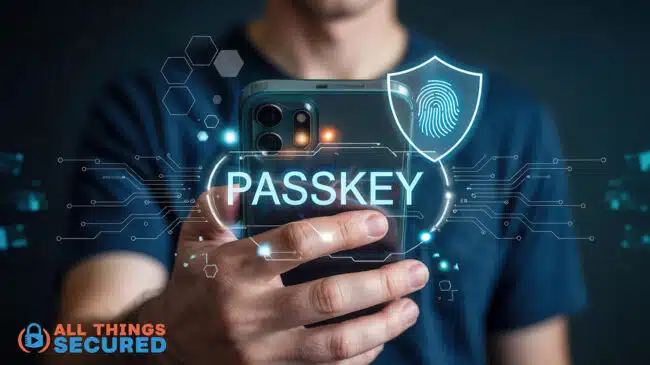
Here’s how it works in practice: you tap “Sign in with passkey,” your device asks for some kind of authentication (usually biometrics like Face ID or your fingerprint), and you’re in. No password typed, nothing to remember. The whole process typically takes two to three seconds.
Passkeys are digital keys stored on your device that verify your identity to a website or app using strong cryptography instead of shared secret words.
And here’s the critical difference when you compare passkeys vs passwords: passkeys are designed so that even if a hacker tricks you with a fake site, your passkey won’t work there. The passkey is tied to the legitimate domain.
In this guide, you’ll learn:
- What is a passkey
- How passkeys work under the hood (explained simply)
- Comparing passkeys vs passwords to understand the fundamental differences
- How to start using them today on Google, Apple, and Microsoft accounts
What is a passkey?
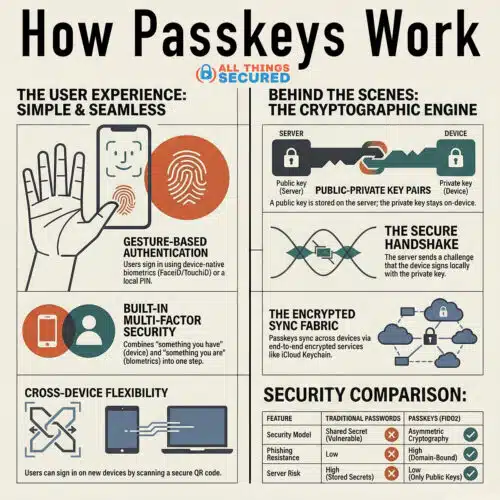
A passkey is a password replacement built on cryptographic key pairs—a public key and a private key—tied to your account and protected by your device’s unlock mechanisms.
In non-technical terms: when you create a passkey, your device generates two mathematically linked keys. The public key gets sent to the website (your bank, email provider, or shopping site), while the private key never leaves your phone, laptop, or password managers that support this technology.
To unlock and use a passkey, you typically use biometric authentication like Face ID, Touch ID, Windows Hello, or Android fingerprint scanning. You can also use your device PIN. Either way, you’re not typing characters—you’re confirming your identity through your user’s device.
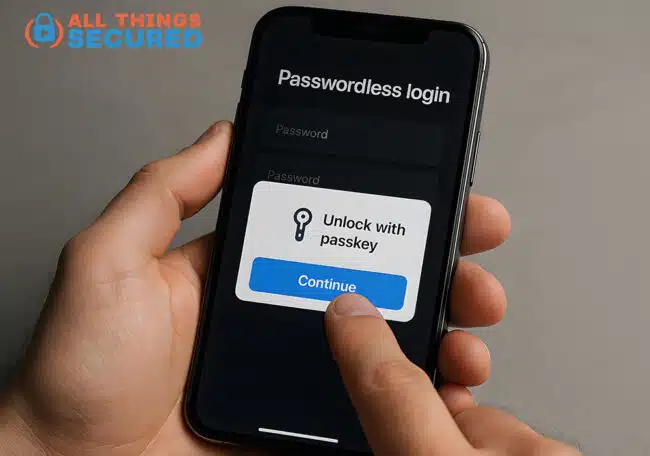
Passkeys are based on open standards developed by the FIDO Alliance and the W3C through the WebAuthn API. These standards are backed by Apple, Google, Microsoft, and major identity providers worldwide.
A concrete example: When you sign in to your Google account with a passkey, Google holds your public key on its servers while your private key lives in Google Password Manager on your device. The two work together cryptographically, but only you can trigger the authentication.
How do passkeys work under the hood?
Let’s break down the basic mechanics without heavy jargon. Think of it like a lock and key system—except the “key” is invisible, stored securely on your device, and never gets copied or shared.
Creating a passkey (4 steps)
- You visit a site like PayPal or eBay and choose to create a passkey during sign-up or in security settings.
- Your supported browser or operating systems use WebAuthn and FIDO2 protocols to generate a unique key pair on your device.
- The public key and a credential ID are sent to the website; the private key stays on your device, protected by your secure hardware.
- The site stores only the public key—it’s useless without its private counterpart.
Using a passkey to sign in (4 steps)
- You go to the site’s login page and pick “Use passkey” instead of entering a password.
- The site sends a random challenge (a one-time code) to your browser.
- Your device asks you to verify yourself via biometric data or PIN, then signs the challenge locally with your private key.
- The website checks the signed challenge against the stored public key; if the math checks out, you’re logged in.
The critical point: your private key never leaves your device, is never typed, and is never visible to the website. Even in a massive data breach, attackers only get public keys—which are mathematically useless for logging in without the private counterpart.
Passkeys vs Passwords: Why are Passkeys Safer?
Passkeys fix the biggest weaknesses of passwords: reuse, guessing, phishing attacks, and database leaks.
- Phishing Resistance Built in: A passkey is tied to the real website’s domain name through public key cryptography. If you tap a link to a fake “g00gle.com,” your device won’t offer your passkey because the domain doesn’t match. Unlike passwords, which you can accidentally type into any site, passkeys offer phishing resistant protection by design.
- No Shared Secret to Steal: When you use just your password, the website stores something that can authenticate you—typically a password hash. If attackers breach that database, they can crack those hashes. With passkeys, servers for services like Google, PayPal, and Best Buy hold only public keys. A leaked database of public keys is useless because attackers can’t reverse-engineer your private key from them.
- Built-in Multifactor authentication: Using a passkey typically requires two things: something you have (e.g. the device storing the private key like a phone, laptop, or hardware security keys) and something you are or know (e.g. your biometrics or device PIN). This makes a single passkey login equivalent to strong two factor authentication—without extra steps.
- Better than Traditional 2FA: With traditional factor authentication using SMS codes or an authenticator app, you type a one-time code that can be phished or intercepted. Passkeys remove this entirely. The signed challenge can’t be replayed or reused.
Real-world scenario: If you reuse the same password on 10 sites and one is breached, attackers can often log into the others. A passkey on that same breached site is useless anywhere else because each passkey is unique and domain-bound.
Passkeys vs passwords: real-world differences
Let’s compare the day-to-day experience rather than diving deeper into technical details.
| Aspect | Passwords | Passkeys |
|---|---|---|
| Login speed | 10+ seconds (typing, errors) | 2-3 seconds (biometric prompt) |
| What you remember | 12-16 character strings | Nothing |
| Security risk | Guessable, reusable, phishable | Cryptographic, device-bound |
| Data sent to server | Shared secret (password hash) | Only signed challenge |
| Reset frequency | Common (forgotten passwords) | Rare (device-based) |
Password fatigue is real
The average person manages dozens or hundreds of accounts. This leads to weak, reused passwords or sticky notes. Password management becomes a constant burden.
Passkeys eliminate memorization entirely. For workplaces, this can reduce support tickets by up to 90% in some pilot programs.
Current limitations
Passwords work everywhere, including older systems. Passkeys require modern web browsers (Chrome, Safari, Edge, Firefox with WebAuthn support) and OS support, which is now standard on iOS 16+, Android 9+, Windows 10+, and macOS Ventura+. Some Linux setups may have limited support.
For services that support them, passkeys generally offer better security and simpler UX. But users will still need passwords for some older accounts during this transition phase.
Where can you use passkeys today?
Passkeys are no longer experimental. Currently, they’re widely supported across major platforms and services.
Major tech ecosystems
- Google: Passkeys for Google Accounts and services, stored and synced via Google Password Manager on Android, Chrome, and ChromeOS
- Apple: Passkeys in iCloud Keychain for iOS, iPadOS, and macOS, working in Safari and supported apps
- Microsoft: Passkeys via Windows Hello and Microsoft accounts on Windows 10/11 and Edge
Popular services that support passkeys
- Payment: PayPal, Mastercard checkout integrations
- Retail: eBay, Best Buy
- Productivity: GitHub, Shopify, various cloud storage providers
By 2026, Google reported over 1 billion passkey registrations across its services. Passkeys also work through QR code scanning—you can use your phone as a passkey device for another computer.
More sites add “Sign in with passkey” options regularly, so expect this authentication method to appear more frequently.
How to start using passkeys (step-by-step guide)
You don’t need technical expertise to start. Enable passkeys on your main accounts and let your device handle the complexity.
Enable a passkey on your Google account
- Sign in to your Google account in Chrome (desktop or Android)
- Go to Manage your Google Account → Security → Passkeys
- Follow on-screen instructions for passkey creation on your current device
- Your device prompts for Face ID, fingerprint, or PIN
- Test by logging out and back in using “Continue with passkey”
Enable a passkey on your Apple ID
- On iPhone or iPad (iOS 17+), go to Settings → your name → Password & Security → Passkeys
- Confirm that iCloud Keychain is enabled
- Follow prompts to add a passkey
- Sign into an Apple service using Touch ID or facial recognition
Enable a passkey on a Microsoft account
- On a Windows 10/11 PC with Windows Hello configured, go to your Microsoft account security page
- Choose Advanced security options → Add a new sign-in method → Passkey or Windows Hello
- Complete the Windows Hello prompt and test a sign-in
For other websites
Look in your account’s “Security” or “Login” settings for options like “Add a passkey,” “Security key,” or “Passwordless sign-in.” When a user registers for passkey authentication, the browser handles the system generated key creation.
Start gradually: Begin with your email account and main cloud storage, then add passkeys to banking, shopping, and social media as those services support them.
Using passkeys across multiple devices (sync, backups, and loss)
A common concern: “What happens if I lose my phone?” Modern systems are built with recovery in mind.
Syncing within ecosystems
- Apple: iCloud Keychain syncs passkeys across all signed-in Apple devices using end-to-end encryption
- Google: You can sync passkeys across Android devices and Chrome where you’re signed into the same Google account
- Microsoft: Windows Hello passkeys can sync within the Microsoft ecosystem
If a device is lost
- Remotely sign it out or wipe it using Find My (Apple), Find My Device (Google), or similar services
- Use another device signed into the same account to access your passkeys
Third-party password managers
Tools like 1Password, Dashlane, and Bitwarden can store passkeys and sync them across platforms. This lets you use a passkey created on an iPhone from a Windows or Linux PC via browser extension or QR code—helping avoid ecosystem lock-in.
You can manage passkeys through these tools and even create multiple passkeys for the same account on different devices.
Always keep at least one backup method: a recovery email, backup codes, or a passkey on a second device.
How does a passkey login actually look from the user’s perspective?
Let’s walk through typical scenarios so you can picture the experience.
Scenario 1: Laptop with phone verification
- You visit PayPal on your laptop
- You click “Sign in” and choose “Use a passkey”
- A QR code appears on screen
- You scan it with your phone’s camera
- Your phone shows a Face ID prompt
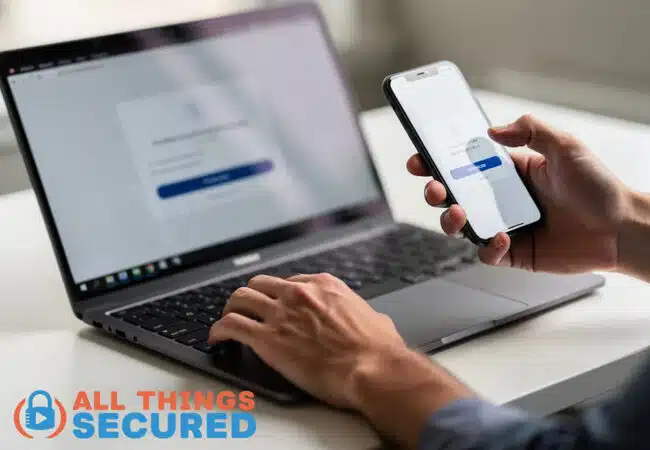
- You approve, and your laptop logs you in automatically
No user ID typed. No password. No one-time code.
Scenario 2: Single-device login
- On your iPhone, you open a banking app that supports passkeys
- The app asks you to sign in with a passkey
- iOS pops up a Face ID window
- You look at the screen
- Face ID verifies you, and you’re signed in instantly
When a user accesses their account this way, the entire authentication flow happens through cryptographic verification in the background—invisible to you except for that quick biometric prompt.
Do passkeys replace passwords completely?
Passkeys are designed to replace passwords in the long run, but we’re in a multi-year transition. Also, a passkey is only as secure as your strongest recovery method.
Many major platforms already support passkeys. However, some sites still require traditional passwords and may add passkey support gradually as an optional authentication method.
A hybrid strategy for now
- Keep using strong, unique passwords for accounts that don’t support passkeys yet
- Enable passkeys wherever available, especially for high-value accounts
- Use a good password manager to handle both
Organizations are increasingly adopting passkeys to reduce password reset tickets and phishing incidents. But legacy systems and regulations will slow full replacement.
As more services adopt FIDO-based passkeys and device support reaches nearly all modern hardware, everyday users will interact with passwords less and less. Passkeys replace passwords progressively—not overnight.
Practical tips for safely moving from passwords to passkeys
Here’s a practical checklist for non-technical readers.
Prioritize important accounts first
- Email accounts (Gmail, Outlook, iCloud)—these reset other passwords
- Financial accounts (banks, PayPal, payment apps)
- Cloud storage (where your sensitive data lives)
Set up device security
- Ensure you have a strong device PIN
- Enable biometrics (Face ID, Touch ID, Windows Hello, fingerprint)
- Modern operating systems enable full-disk encryption automatically
Enable passkeys systematically
For each account:
- Log in normally with your password
- Go to security settings and add a passkey
- Test logging in with the passkey
- Keep your password as backup until confident
Maintain backup access
- Add one passkey on a new device if possible (phone + laptop)
- Store recovery codes from critical services securely
- Consider hardware security keys for extra security on critical accounts
Stay alert
You’ll see new buttons like “Use a passkey” or “Sign in with your device”—these are expected. If something asks you to type your password on a suspicious site, navigate manually to the official URL instead.
Summary: why learning how passkeys work matters
Passkeys replace memorized passwords with device-based cryptographic keys, giving you quicker logins and stronger security against phishing and data breaches. There’s no shared secret to steal, and the actual secrets (your private keys) never leave your device.
Key takeaways:
- Major ecosystems (Apple, Google, Microsoft) and many big services already support passkeys
- Passkeys offer stronger security without requiring you to remember complex strings
- The technology is mature enough to use daily but won’t fully eliminate passwords for a few more years
Your action plan:
- Enable passkeys on your primary email account (especially if you use a secure email provider) and one financial account this week
- Gradually add passkeys to other services as support appears
- Maintain a secure backup and recovery strategy
Understanding how passkeys work doesn’t require deep technical skills. Using them is often as simple as looking at your camera or touching a fingerprint sensor—and that small change dramatically improves your security posture.