Google has built one of the most amazing internet browsers – that’s for sure. But when it comes to privacy, well…not so much. That’s probably why you’re here looking for the best alternatives to Chrome. Thankfully, there are plenty of private browsers to choose from, and I’ll share the pros and cons for each.
Chrome is still the dominant desktop browser: Statcounter measured 73.28% of worldwide desktop browsing in August 2026. Edge was next at 10.46%, while Safari was around 5%. Popularity is one consideration, but it doesn’t tell you which browser best fits your privacy preferences.
The problem, as you probably know, is that advertising and data collection are central to Google’s business. I prefer a browser that puts stronger tracking protection front and center.
That’s one reason I use a different browser, and it’s the same reason some people are looking for good Gmail alternatives.
If you want to reduce tracking while reading the news, streaming shows or shopping online, consider an alternative to Chrome. Each option has tradeoffs, and switching browsers alone does not make you anonymous.
But what are the best Chrome alternatives?
We’re going to cover what options you have as well as the pros and cons of each.
My recommendation: Brave. It feels familiar coming from Chrome, and I like its privacy defaults without having to spend time changing settings. It’s the browser I use every day.
Use the navigation links above to jump to a specific section, or you can continue scrolling down to read more.
6 Best Alternatives to Chrome in 2026
Instead of beating around the bush, let’s jump right in and talk about these six main Google Chrome alternatives. I’ve also included four more niche options below.
The good news is that, as with Chrome, each option I’m presenting here is free. In fact, one of them even pays you to use the browser!
I’ll start with my favorite and the one I use on a daily basis: Brave.
Brave | Best Overall Privacy Browser (Open Source)
Brave is an open-source browser and my daily choice. It feels familiar if you’re coming from Chrome, and its privacy defaults are the main reason I recommend it to a typical reader.
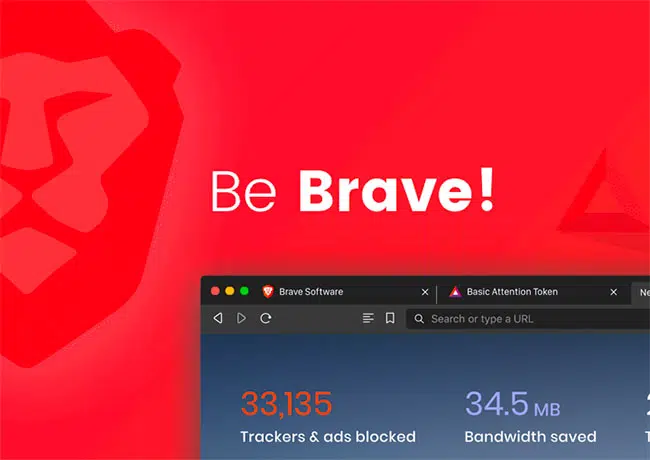
The reason I recommend Brave over others is that it’s the best privacy setup out of the box, meaning you don’t have to change any settings when you start using it. As an alternative to Chrome, Brave definitely feels familiar with the search bar, tabs, back/forward buttons, etc.
Alongside ad and tracker blocking and cross-device syncing, Brave offers an optional feature:
Brave rewards.
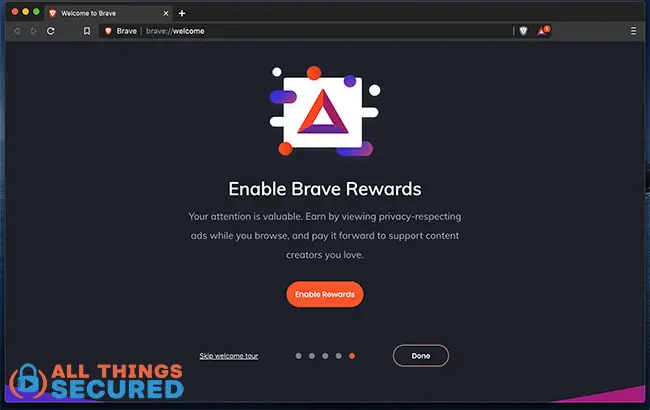
Brave Rewards lets eligible users earn rewards by opting into private ads. Availability, payout options and eligibility vary; you don’t have to enable Rewards to use Brave.
Strengths of Brave
- Open-source, so its code is available for inspection;
- Based on the Chromium browser, which means that most of the Chrome extensions work for Brave as well;
- Familiar interface that mimics Chrome;
- When combined with DuckDuckGo search, offers superior privacy
- Brave rewards for using the browser.
Brave also offers desktop private windows with Tor connectivity. These are not equivalent to Tor Browser’s privacy protections; use Tor Browser when that distinction matters to you.

Mozilla Firefox | A Non-Chromium Alternative
If you want a browser with its own engine rather than another Chromium-based option, Firefox is a great choice. The everyday interface still feels familiar.
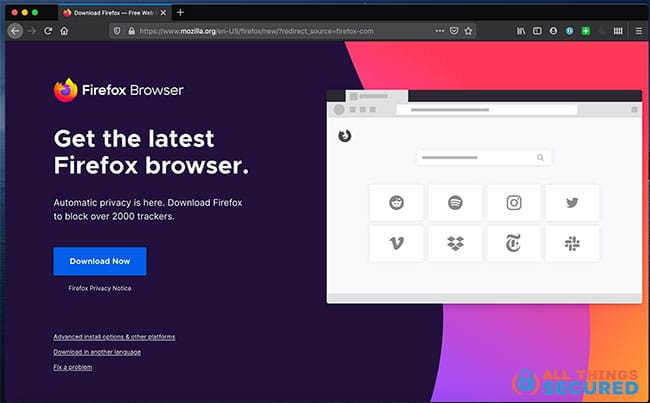
Firefox has a smaller desktop market share than Chrome or Edge, but its independent browser engine makes it an important alternative. Firefox also has its own extension ecosystem. This is important because you might need to check that the extensions you use on a regular basis with Chrome are available on Firefox before migrating; Chrome extension compatibility does not follow automatically.
It’s a very stable browser (i.e. it doesn’t crash easily), it’s fast and it’s incredibly easy to migrate over.
Strengths of Mozilla Firefox
- Excellent extension & add-on support;
- The separate optional Mozilla VPN paid service for users who also want a VPN;
- Incredibly easy to migrate over from Chrome;
- Fast, stable and private;
Brave is my daily browser, but Firefox is still a great option. I would usually spend a little time reviewing and hardening its privacy settings rather than assume the default setup matches what I want.
Tor Browser | Anonymity-Focused Browsing
If resisting tracking and hiding your IP address from websites are priorities, Tor Browser deserves a look. It is an anonymity-focused option, with more day-to-day friction than Brave or Firefox.
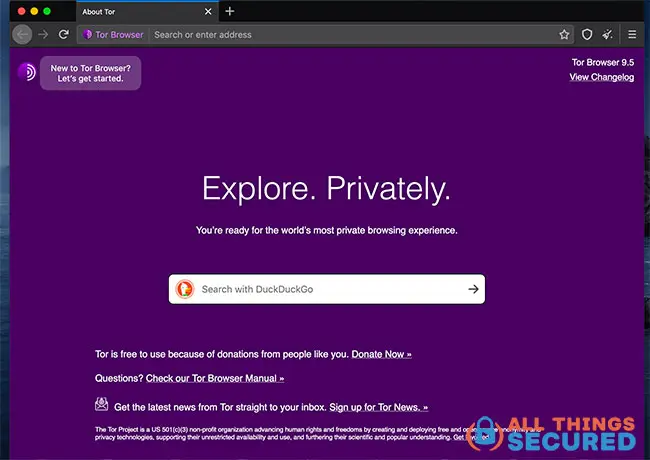
The Tor project has been heralded by the privacy community for more than a decade as the answer to major corporations like Google and Facebook tracking everything you do online (make sure to change these 7 Facebook settings to protect your information). Tor Browser routes browser traffic through multiple relays so the site does not normally see your real IP address. HTTPS still matters for the connection from the exit relay to the website.
Compare Tor with a VPN before deciding which you need. Tor Browser protects traffic within that browser; it does not automatically route every app on your device through Tor.
Tor can help access censored sites, but restrictive networks may block it and require bridges or other connection options. It is not a guaranteed way around every country’s or school’s restrictions.
Benefits of Tor Browser
- Uses multiple relays and anti-fingerprinting protections to reduce tracking;
- Can help reach censored sites, with network-specific restrictions;
- Reduces tracking, but cannot prevent every form of identification or monitoring;
I wouldn’t consider Tor to be the most user-friendly alternative to Chrome, but it continues to be improved.
Helium | Simplicity and Privacy Combined
Helium is the newer browser that has caught my attention. It is currently in beta. It feels clean and fast, with simplicity and privacy combined.
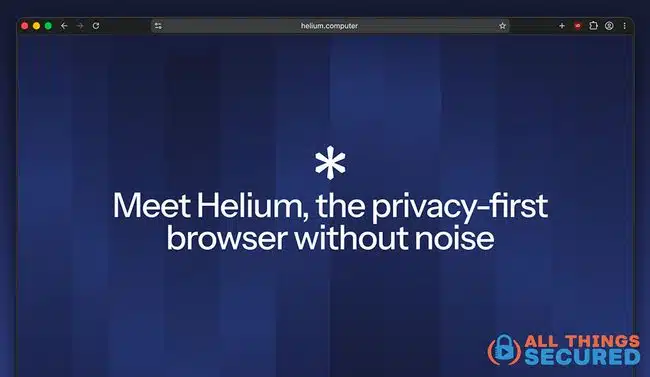
Its minimal interface is a big part of the appeal: fewer distractions, with ad and tracker blocking enabled by default.
Because Helium is based on Chromium, it supports familiar Chrome extensions. Its source code and supporting services are open source.
This is a practical option if you want a pared-back browser rather than an interface packed with extras. My impression that it feels fast is not a claim that it wins every benchmark.
Benefits of Helium Browser
- Chromium extension support;
- Uses “Bangs,” a shortcut to jump to thousands of website without using a search engine;
- A clean interface with useful layout options;
- Ad and tracker blocking by default;
One important limitation: Helium does not support Widevine DRM, so some protected streaming content will not play (e.g. Netflix, Disney+, etc.). Keep that in mind before making it your only browser.


Safari Browser | Best for Mac Users
If you own a Macbook or an iPhone, you already have Safari, whether you like it or not. But hey…it’s a viable Chrome alternative.
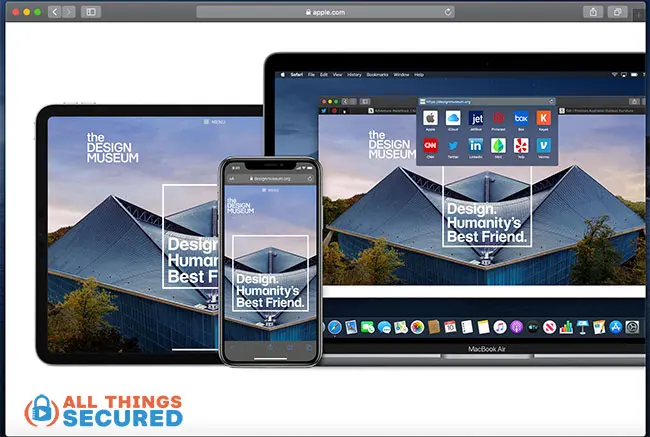
Safari has never been my favorite internet browser, but as with any piece of software made by Apple, it works seamlessly with any and all Apple-made products. So if you’re immersed in the Apple ecosystem and you have an iPhone, iPad, Macbook, etc. – it might make sense to just use the Safari browser.
In addition to being fast and configurable, it’s also one of the best browsers at switching between devices (naturally). Apple calls it a “handoff”, and it’s much better than a simple “sync”.
Benefits of Safari Browser
- Works seamlessly with Apple devices;
- A number of good privacy features, especially if you’re an iCloud+ subscriber;
- “Hand off” feature makes switching devices easy;
No Download: If you have an Apple device, you have Safari
Apple has pretty much abandoned any support of a Windows version of Safari browser, so if you use a PC, you can ignore this as one of the alternatives to Chrome.
Opera Browser | Built-In Convenience Features
If you want built-in convenience features, Opera might be a Chrome alternative worth trying.
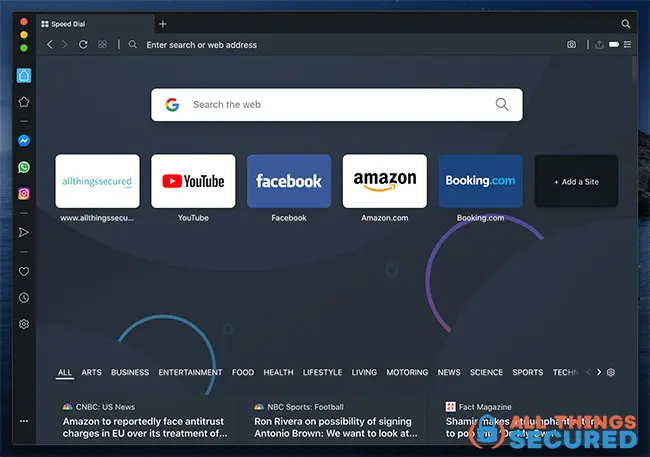
Opera combines a different interface with communication tools and a built-in browser VPN. Its layout is a more noticeable change from Chrome. For example, a lot of the settings and bookmarks are on the side, not the top of the browser.
In other words, if you want your new browser to feel familiar and easy, Opera might not be for you.
However, if you do get used to the unique design, it’s an excellent software for fast browsing.
Benefits of Opera Browser
- Built-in tools and interface customization;
- Built-in messenger apps for communication;
- A free VPN for traffic inside Opera; device-wide protection is a separate paid product. I still suggest being selective about choosing a free VPN service;
Opera’s mobile apps are also quite stunning, which isn’t always the case for some of the other options listed here.
Additional Privacy Browsers
Aside from the recommended browsers above, here are four additional privacy browsers that are also worth considering. They’re more specialized choices than my main recommendation, so pick the one whose tradeoffs make sense for you.
Mullvad Browser
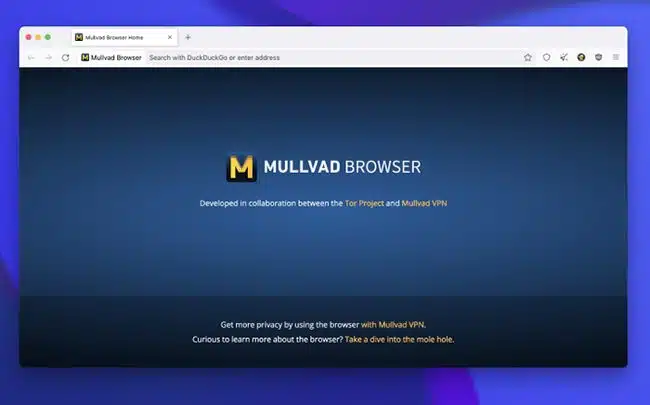
Developed with the Tor Project, Mullvad Browser focuses on reducing tracking and making users harder to distinguish by their browser fingerprint. Despite being built in collaboration with Tor, it does not use the Tor network.
You can use it with or without a VPN, but without one your IP address remains visible to websites. It is free and available for supported desktop systems; avoid adding lots of extensions or customizations that make your setup stand out.
DuckDuckGo Browser
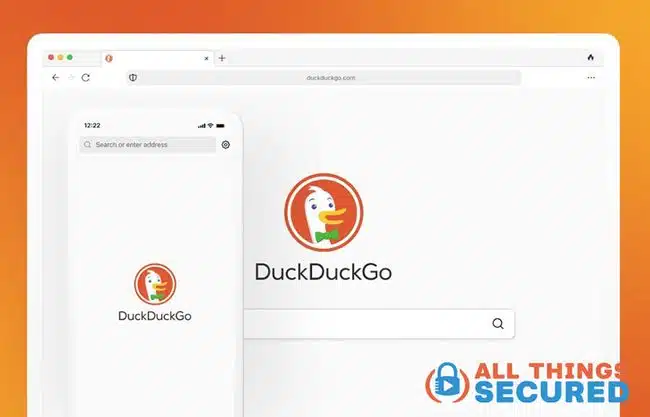
DuckDuckGo offers an approachable browser with built-in tracking protection, private search (via DuckDuckGo, naturally) and a button to clear browsing data.
Versions are available for Windows, Mac, Android and iOS. It is a good option if you want simple privacy controls; check whether the browser supports the extensions and workflows you rely on before migrating.
LibreWolf Privacy Browser

LibreWolf is an independent browser build on the Firefox Gecko engine (not Chromium) with privacy-focused settings, reduced telemetry and uBlock Origin included.
It is worth considering if you like Firefox but want more hardening built in from the get-go. Its stricter defaults can require adjustments for some sites. For example, DRM is disabled by default.
Vivaldi Browser
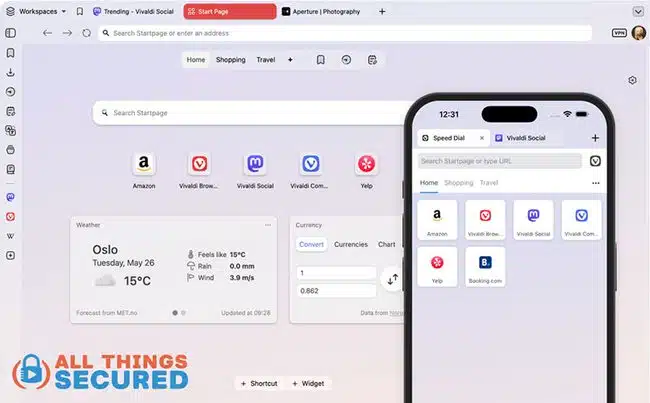
Vivaldi is the option for people who want more control over how their browser works. Its built-in tracker and ad blocking can be configured globally or per site, alongside extensive interface and tab options.
Choose the blocking level you want instead of assuming every privacy feature is already enabled.
How to Easily Switch Web Browsers
The idea of switching away from Google Chrome to a Chrome alternative may seem impossible at first, but it’s not as hard as you think. In some ways, this is one of the simplest privacy moves you can make just because the switching costs are so low.
Most mainstream browsers offer some import tools, but bookmarks, passwords and extensions are separate tasks. Privacy-focused tools such as Tor or Mullvad Browser deliberately limit customization, so don’t assume a complete Chrome profile will transfer.
Here’s a quick look at how you can make the switch as seamless as possible.
How to Migrate Bookmarks from Chrome
Time needed: 5 minutes
Exporting your bookmarks from Chrome to another internet browser is thankfully a very simple process.
- Open Your Chrome Bookmarks Tab
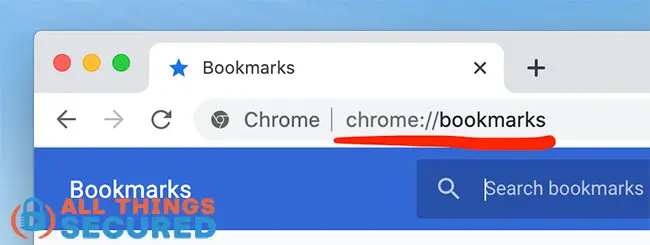
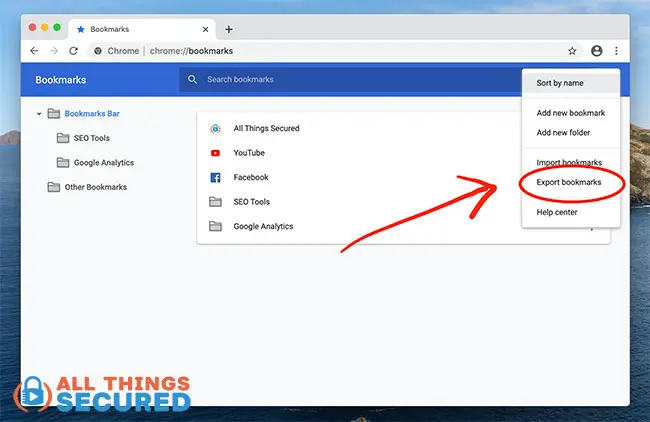
You can find the bookmarks as one of the menu items for the app or you can simply navigate to the following URL: chrome://bookmarks (copy & paste this into the URL bar).

- Export your bookmarks to an HTML file
There are three dots on the right side of the bookmarks search bar. When you click that, you should see a setting that allows you to “export bookmarks”. There will be a popup asking you what to name the file and where to put it.

- Import that file into your Chrome alternative browser
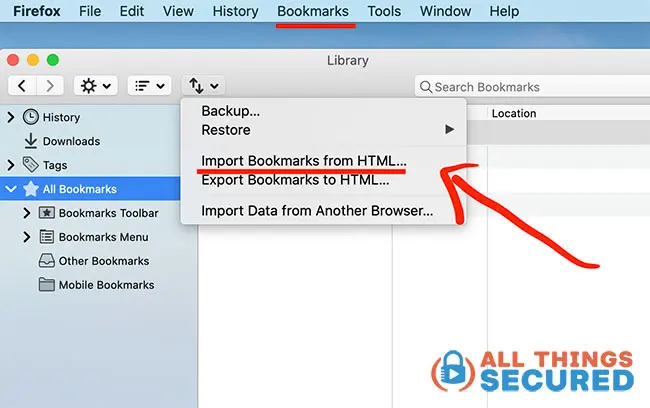
Within the bookmarks settings on any of the above browser, you should find an option to “Import Bookmarks”. Simply upload the HTML document you just exported from Chrome and you’ll see your bookmarks in your new browser, organized in the same way you had them.

Allow about 5 minutes for a straightforward bookmark transfer. The hardest part is often finding the export and import settings in each browser; a larger or more complicated move may take longer.
How to Migrate Passwords from Chrome (Warning!)
For passwords, use Chrome’s Google Password Manager export and the new manager’s import process. Exported CSV files contain readable passwords, so keep the file private, avoid uploading it to shared storage, and remove the export after confirming the import.
However…
This is a good time to reconsider storing passwords in Chrome. My preference is a dedicated password manager that I can use across browsers and devices.

Browsers are designed to help make your internet experience fast and fun. While built-in browser vaults do have security protections, personal security best practice is to keep your password management separate from whichever browser you happen to use.
That’s where a dedicated password manager can help. I now use Proton Pass personally and for my business. I still think 1Password is great but Proton Pass is what I use and recommend today.
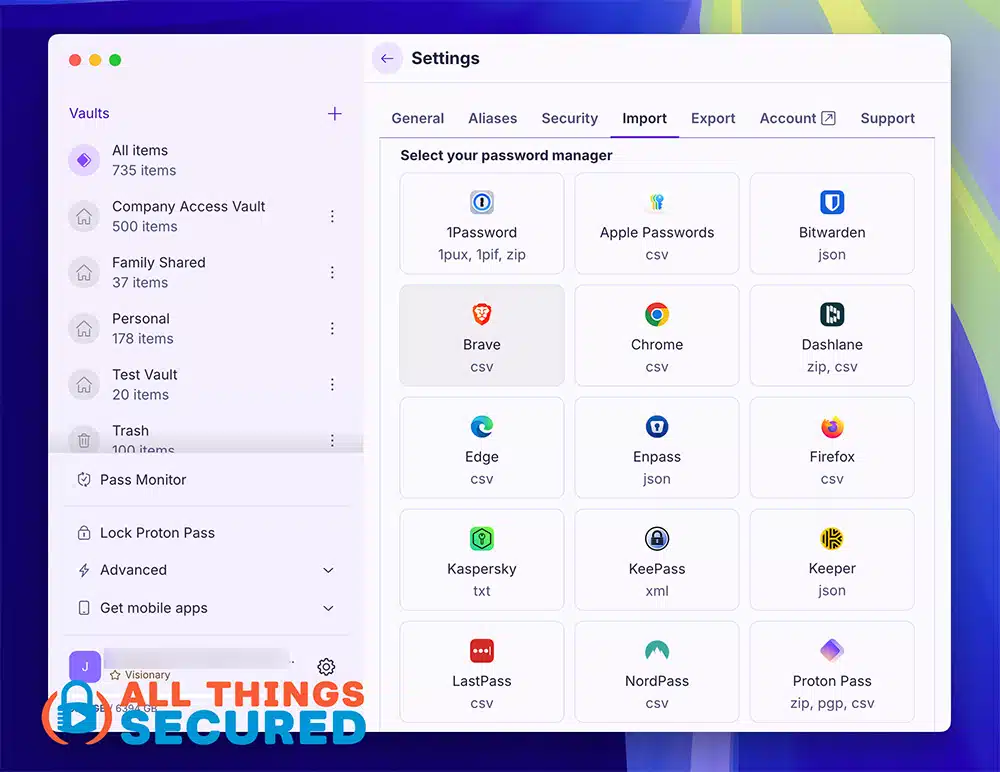
Instead of importing the vault into another browser, consider a password manager. Proton Pass’s extension has worked just as well for me on Chromium-based browsers and Firefox. Check its supported browser extensions for your setup.
For a closer look, read my Proton Pass review. To make the move, follow my password migration tutorial.
How to Migrate Extensions & Add-ons from Chrome
Extensions and add-ons are the trickiest part of migrating away from Google Chrome and to one of the alternatives.
For Chromium-based browsers such as Helium, Opera and Brave, many familiar extensions will be available. Check each browser’s current support and review extension permissions as you reinstall them.
In the instance of a browser like Firefox, you’ll have to search and hope that the developer has created the same plugins for Firefox that they did for Chrome.
Tor Browser discourages extra add-ons because they can weaken its privacy protections. The same minimalist approach is important with Mullvad Browser; don’t automatically install your usual collection of extensions.


Choosing the Best Alternatives to Chrome for YOU
In the end, no matter which of the alternatives to Chrome you choose, it’s going to take a little while to get used to the change.
Embrace it!
The privacy improvement depends on the browser, settings and habits you choose. It’s worth taking the time to find a setup you’ll actually use, even when setting up your Chromebook VPN.
Best of all, each of these Chrome alternatives is free to download and use, so you can easily try a few of them to see which fits your preferences and needs best.